The HTML <search> element shipped in all major browsers in late 2023 and has been quietly available for over two years now, but I still see almost no real-world markup using it. Most search forms on production sites are still wrapped in a generic <div> with role="search" as a courtesy to screen reader users, which is exactly what <search> was meant to replace. This article walks through what the element actually does, when to use it, and what assistive technology does with it in 2026.
The element is just the role made native
The mental model: <search> is to role="search" what <nav> is to role="navigation". A semantic HTML element that produces the same accessibility tree as the corresponding ARIA role, with the same meaning, but without you having to remember to add the role attribute.
The minimum example:
<search>
  <form action="/search">
    <label for="q">Search</label>
    <input id="q" name="q" type="search" />
    <button type="submit">Go</button>
  </form>
</search>
That’s it. The <search> wrapper does nothing visually — it has no default styling — and it doesn’t change how the form behaves. What it does change is how the browser exposes the element to assistive technology: instead of an unmarked div, screen readers see a landmark of type “search”, which means it shows up in landmark navigation menus and gets announced when the user enters it.
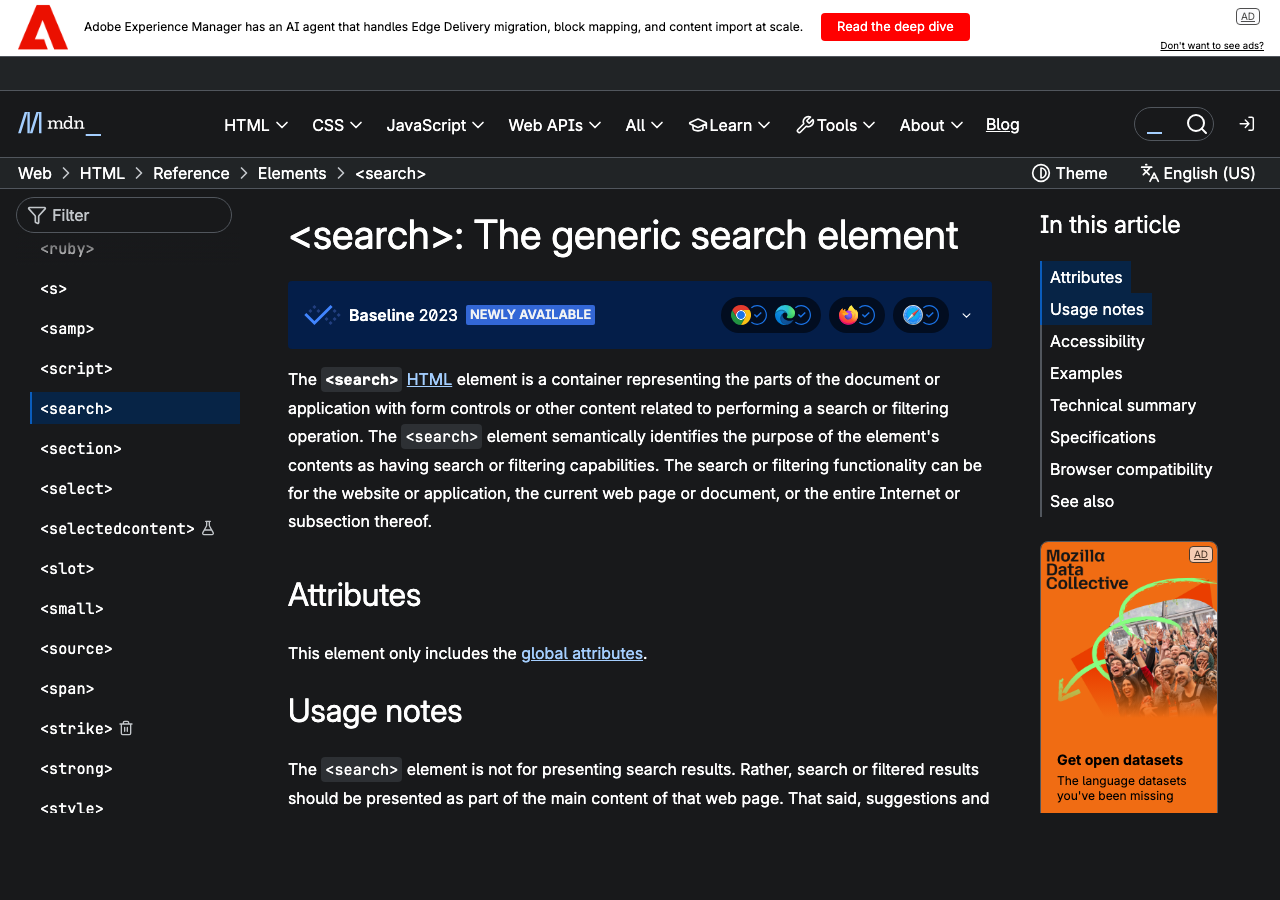
What landmarks actually do for screen reader users
Most sighted users have never used a screen reader, so it’s worth explaining what landmarks accomplish in practice. When a screen reader user lands on a new page, they typically don’t read it from top to bottom — that takes forever. Instead, they ask the screen reader for a list of landmarks, which is like a table of contents for the structural regions of the page. NVDA’s command is D, JAWS uses R and ;, VoiceOver uses VO + U and selects “Landmarks”.
The list shows the landmarks in document order: banner, navigation, main, complementary, contentinfo, search, region. The user picks one and the screen reader jumps focus to it. “Skip to search” is a common navigation pattern that requires the search region to be a landmark — and before <search> existed as a native element, the only way to make that work was to add role="search" to a div manually.
The improvement <search> delivers: developers who are writing semantic HTML and not thinking about ARIA roles get the landmark for free. Sites that previously had no search landmark at all (the majority of sites, in my anecdotal experience) now get one as soon as someone notices the element exists.
Where to use it (and where not to)
The spec is intentionally broad: “a part of a page or application that contains a set of form controls or other content related to performing a search”. That phrasing covers more cases than the obvious one. Use <search> for:
- The site-wide search box in your header.
- A filter sidebar on a search results page (not just the input — the whole filter panel).
- An autocomplete typeahead that surfaces suggestions as the user types.
- A dedicated search page where the search controls take up the whole page.
- A modal dialog that contains a search interface.
Don’t use it for:
- A single input that filters a small list (use the input’s
aria-controlsattribute instead). - A login form, contact form, or any other form that isn’t searching for content.
- A general-purpose form wrapper. The search element is specifically for search; using it as a generic wrapper dilutes the meaning.
The line between “this is a search interface” and “this is a filter UI” is blurry. The rule of thumb I use: if the user is trying to find something they don’t yet know the location of, it’s a search and it gets the element. If the user is trying to narrow down a list they’re already looking at, it’s a filter and it doesn’t.

Multiple search regions on one page
The spec explicitly allows multiple <search> elements on the same page, and this is where the element starts paying off compared to the ARIA approach. A site might have a global search in the header and a section-specific search in the sidebar of an archive page. Both should be landmarks, and screen readers should be able to differentiate them.
The way you differentiate is the aria-label attribute:
<search aria-label="Site search">
  <!-- main search -->
</search>

<search aria-label="Search archives">
  <!-- section-specific search -->
</search>
Now the landmark list shows both with their distinguishing labels. If you don’t add labels, screen readers usually announce both as just “search” and the user can’t tell which is which until they enter it. This is a small addition that costs nothing and makes a real difference for users who navigate by landmarks.
Browser and assistive tech support
The element is supported in all major browsers since late 2023:
- Chrome 118 (October 2023)
- Firefox 118 (September 2023)
- Safari 17 (September 2023)
- Edge 118 (October 2023)
Browsers older than that don’t recognize the element but they don’t break either — the element renders as a generic block and the form inside it still works. The accessibility tree just doesn’t get the landmark mapping. For the small remaining tail of pre-2023 browsers, the fallback is to add role="search" to the element directly:

<search role="search">...</search>Modern browsers will ignore the redundant role; old browsers will respect it. This is a defensive belt-and-suspenders pattern that’s worth using for the next year or so until the long tail of older devices ages out.
Assistive technology support is similarly broad. NVDA (the most popular screen reader on Windows) has supported the element since version 2024.1. JAWS picked it up in 2024.2403. VoiceOver on macOS supports it in Sonoma and later. iOS VoiceOver and TalkBack on Android both support it in their current major releases.
The CSS implications
One small but useful thing: because <search> is a real element, you can target it with CSS. Sites that wanted to apply consistent styling to all search regions used to need a class name on the wrapper div. Now you can do this:
search {
  display: flex;
  gap: 0.5rem;
  align-items: center;
  padding: 0.5rem;
  border: 1px solid var(--border);
  border-radius: 4px;
}

header search {
  background: var(--surface-1);
}
This is a tiny win, but it’s a tiny win that compounds — every page that uses the element gets consistent search styling without needing to remember a class name.
What this fits into
The HTML5 push to add semantic landmark elements (header, nav, main, footer, aside, section, article) was supposed to make ARIA roles unnecessary for the common cases. <search> is the latest piece of that puzzle and arguably the one that should have shipped with the original HTML5 set. It just took twenty years for the WHATWG to get around to it. The fact that it took so long doesn’t change the recommendation: use it on every search interface you ship in 2026 and afterward.
The HTML <search> element is a small semantic improvement with real accessibility benefits. It produces the same accessibility tree as role="search" on a div but without requiring you to remember the role attribute. Use it for any region of your page that contains search controls — site-wide search box, filter panel, dedicated search page, search modal — and add an aria-label if you have multiple search regions on the same page. Browser and screen reader support is broad enough in 2026 that there’s no reason to keep using the manual ARIA approach.